1. Adding Entries to Your Sketchbook
Your sketchbook is a blank canvas for your thoughts. You can add entries in several ways, allowing you to capture ideas from anywhere.
Add from Toolbar
Use the toolbar to add new text notes, upload images, or record audio directly to your canvas.
Find on the Search Page
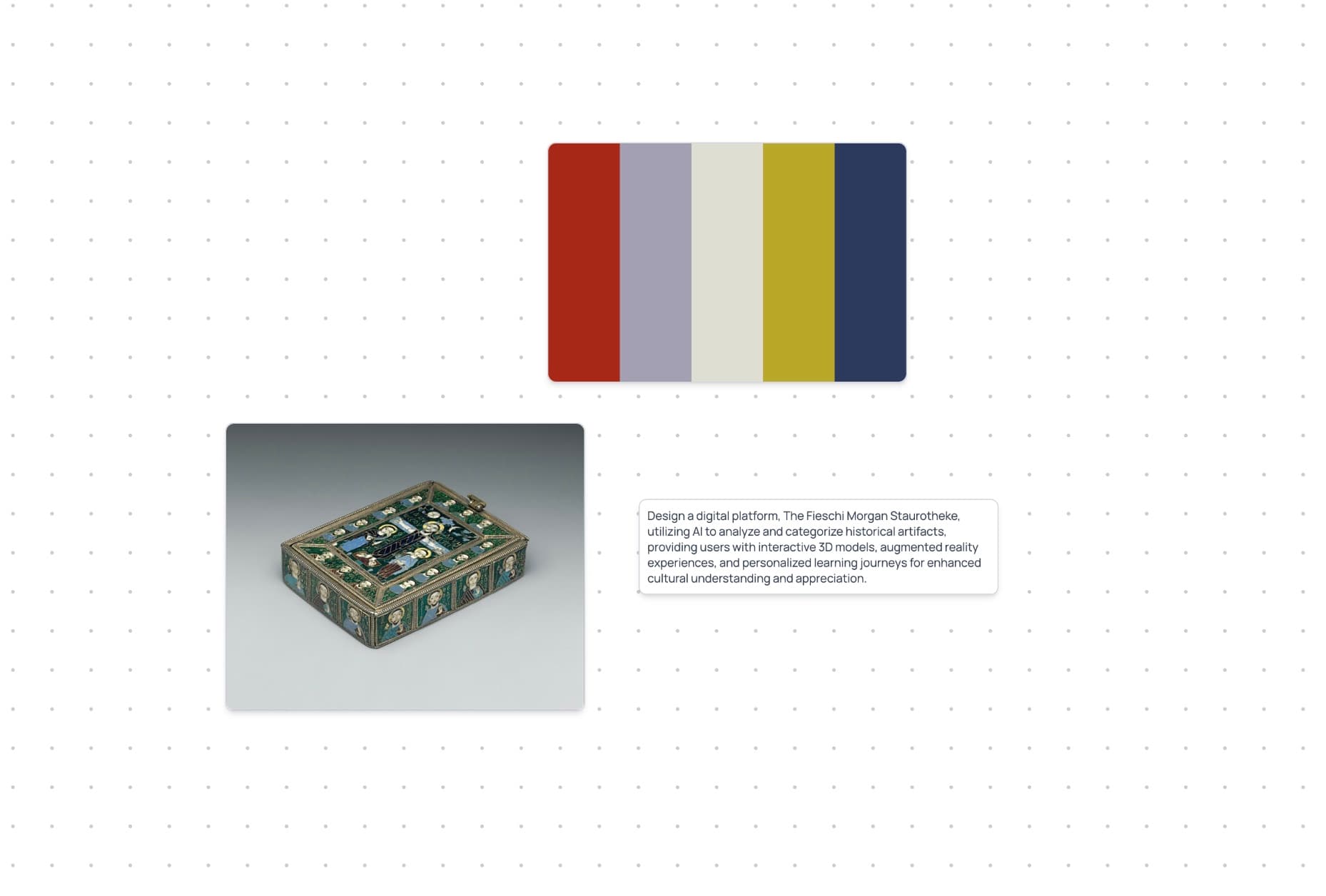
Search museum collections and Unsplash for artwork and photos, and add the ones you like to your Archive. From there, drag them onto any page.
Add from the Archive
Open the sidebar's Archive to see all entries you've saved from the search page or recorded via the mobile app, and add them to your sketch.
Paste from Clipboard
The quickest way to add content. Simply copy text or an image and paste it directly onto the canvas with Ctrl+V or Cmd+V.
2. Using AI to Develop Your Ideas
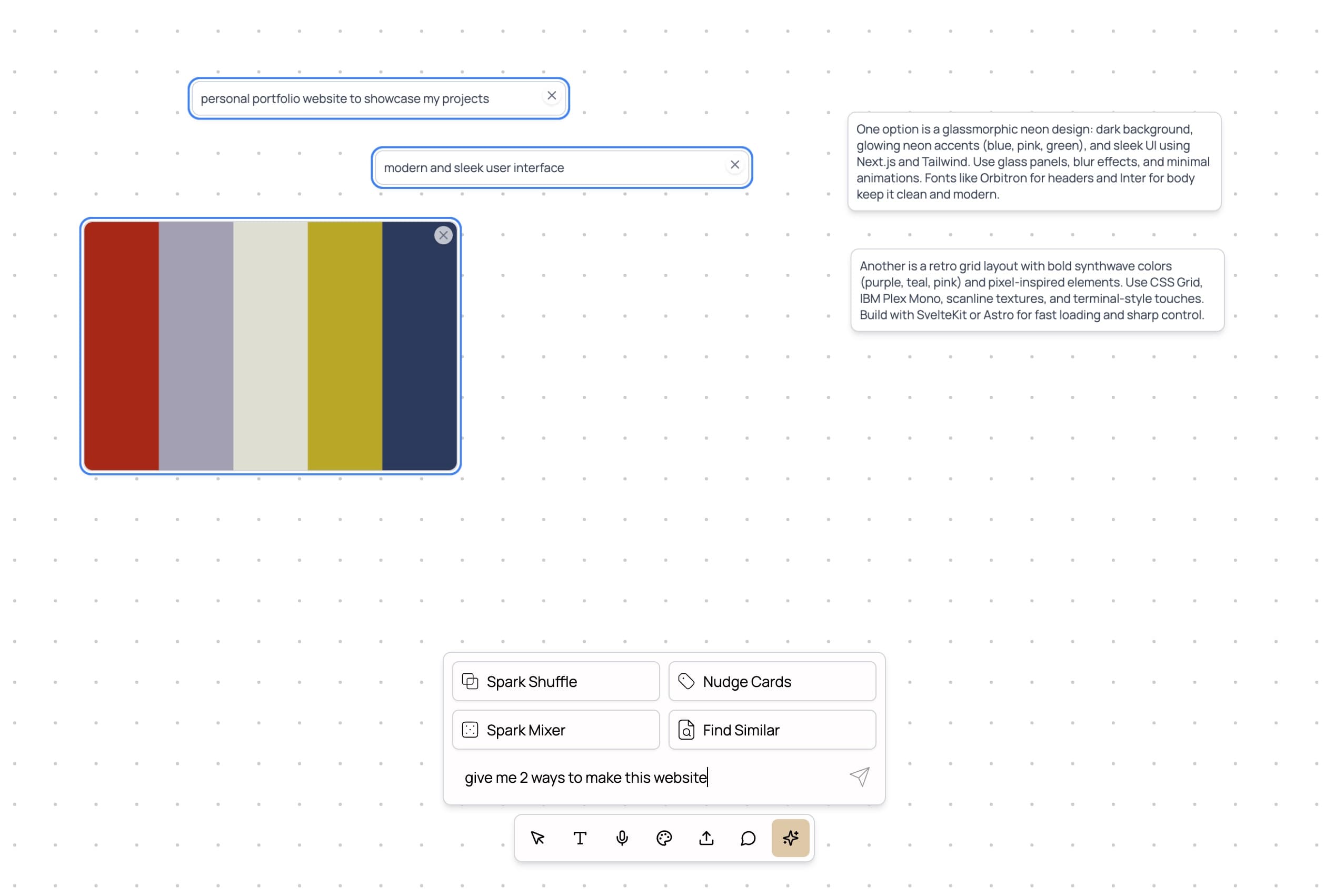
Scraps has a suite of AI tools designed to act as your creative partner. You can access these from the toolbar at the bottom of your sketchbook.
Spark Mixing
First, select multiple entries you want to combine. Then, use Spark Mixing to ask the AI to blend them into a new, single idea. It's great for synthesizing different thoughts.
Spark Shuffle
Let the AI find unexpected connections between your entries. It will surprise you with novel combinations.
Find Similar
Select an entry, press 'Find Similar' or use the shortcut (4), and the AI will find other visually or semantically similar entries from your sketchbook, helping you rediscover past ideas.
Nudge Cards
When you're feeling stuck, use a Nudge Card. The AI provides contextually-aware suggestions and creative prompts to get you going again.
3. Organizing and Saving Your Work
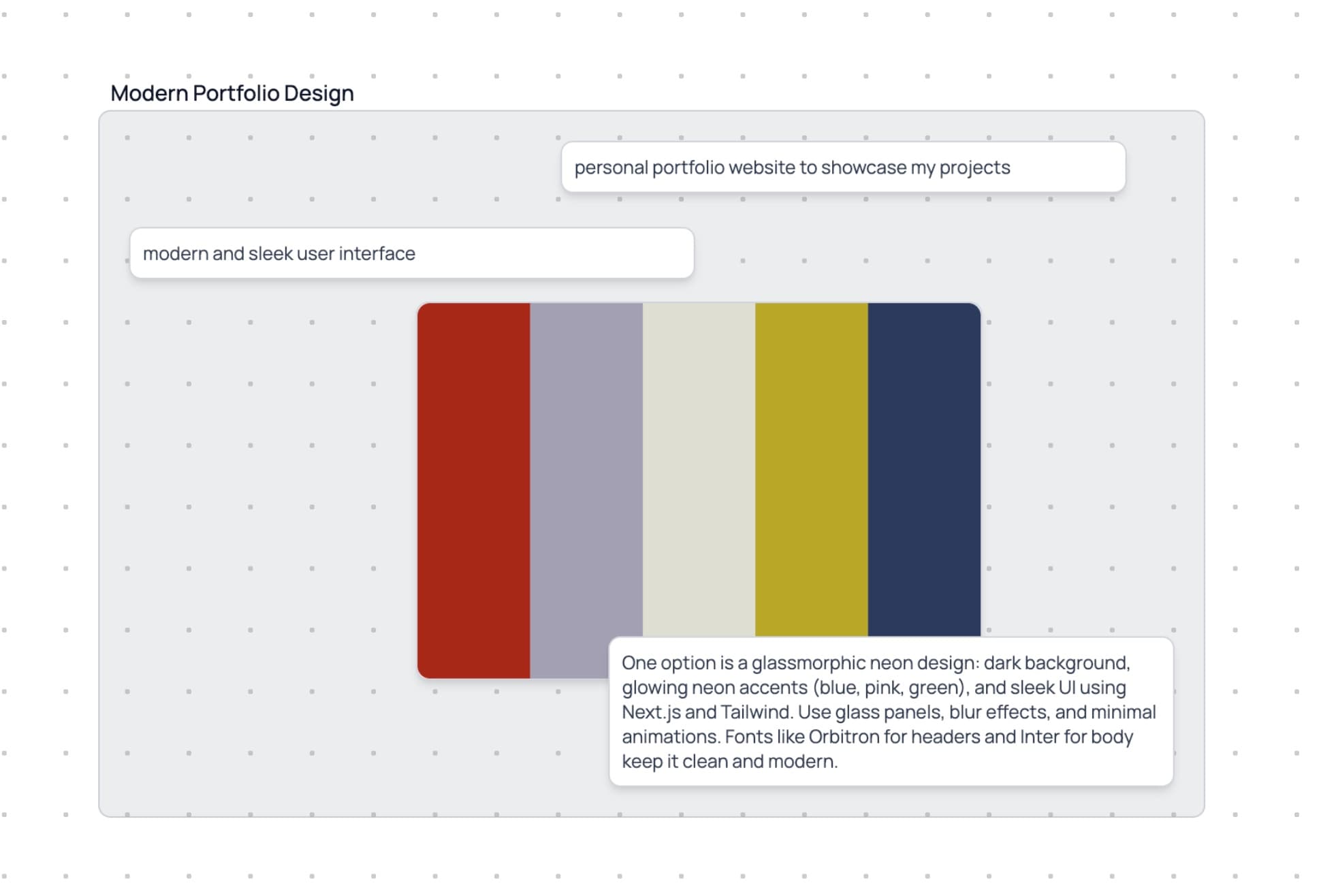
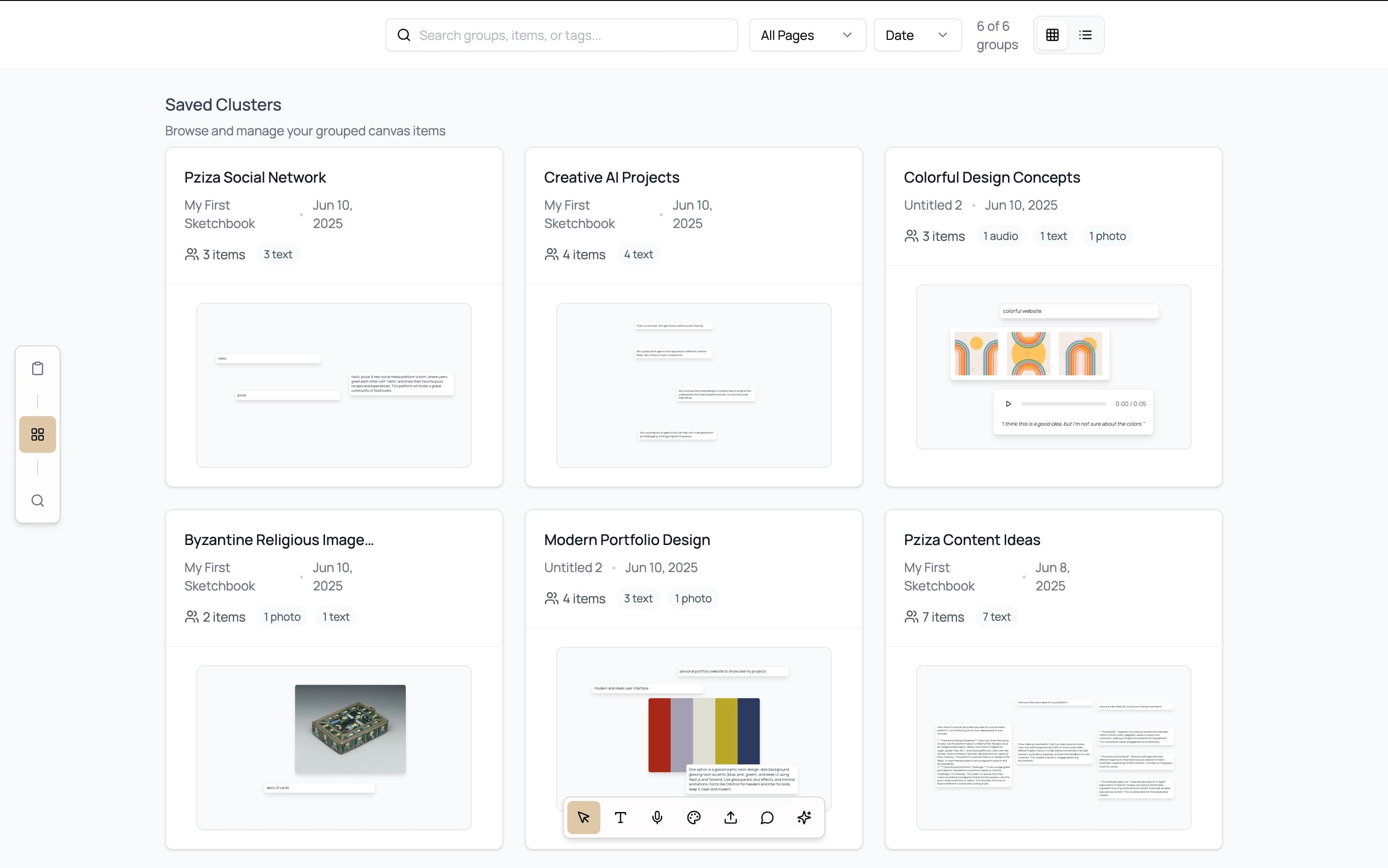
As your sketchbook grows, you can organize related ideas into groups, which we call 'Clusters', a.k.a. sketches.
Select Multiple Items
Click and drag on the canvas to draw a selection box (marquee selection) around the items you want to group. You can also hold Shift and click individual items. If the box caught notes and photos alike, right-click the selection and choose Filter selection to keep just one kind.
Move With the Arrow Keys
With items selected, the arrow keys move them one step at a time. Hold Shift to move ten.
Arrange a Selection
Select two or more items and a bar of arrange buttons appears above them: align, space evenly, tidy into a grid, pack tightly, sort by date added or by name, shuffle into a random order, stack in a row or column, flip the layout, match their widths, heights or sizes, or stretch them across the selection. Match sizes gives every item the same area as the largest, so tall and wide pictures carry the same weight; Stretch horizontally makes every item as wide as the whole selection, keeping its proportions. Flip mirrors where the items sit, not the pictures themselves. The same commands are in the right-click menu, and Alt (Option on Mac) chords run them from the keyboard: Alt+R shuffles, Alt+Shift+N sorts by name, Alt+Shift+E matches sizes, and Alt+Shift+X and Alt+Shift+Y stretch across and down. Shift+H and Shift+V flip the layout across or down.
Zoom From the Keyboard
Press Ctrl and + or - (Cmd on Mac) to zoom the canvas in or out, and Ctrl+0 (Cmd+0) to return to 100%.
The Zoom Tool
Press Z, or pick Zoom from More Tools, then click to zoom in, Alt+click to zoom out, or drag a box to zoom to it. Hold Z to zoom for a moment: letting go brings back the tool you were using.
The Laser Pointer
Press K, or pick Laser from More Tools, then drag to point at things while you present a board: the trail fades on its own and changes nothing. Press Esc or V to put it down.
Tool Lock
Press Q, or the padlock at the end of the toolbar (in More Tools on a phone), to keep the Text, Upload or Video Embed tool after each use, so you can place several notes in a row. Clicking the paper saves the note you are writing and starts the next one there. Press Esc or V to go back to Select; the lock stays on until you press Q again.
Zoom to Fit
Press Shift+1 to see everything on the page at once, or Shift+2 to zoom to the items you have selected.
Quick Zoom
Press Shift+Z, or pick Overview from the zoom menu, to pull back and see the whole page. A box the size of your view follows the pointer: click or tap where you want to be, and the view zooms back in there at the zoom you left. Hold Shift while you point and let go to land; Esc goes back to where you were.
See Every Shortcut
Press ? on the canvas for a sheet of every keyboard shortcut.
Pan With Space
Hold Space and drag to move around the canvas, even when you start on a card. With nothing selected, the arrow keys move the view too (Shift moves half a screen); hold Space with them to look around without moving or losing what you have selected.
Save a Cluster
With multiple items selected, press Ctrl+G (or Cmd+G on Mac). This will group the items into a single, named cluster.
View Your Saved Clusters
Access all your saved work from the 'Clusters' page. Click on the four-block icon in the main navigation to see everything you've created.
Happy creating!